Combining Research, Data Processing, and Browser Automation
Research across pages, turn the findings into a table, and let Agent S6 finish the task on a website, adding requirements mid-run without starting over.
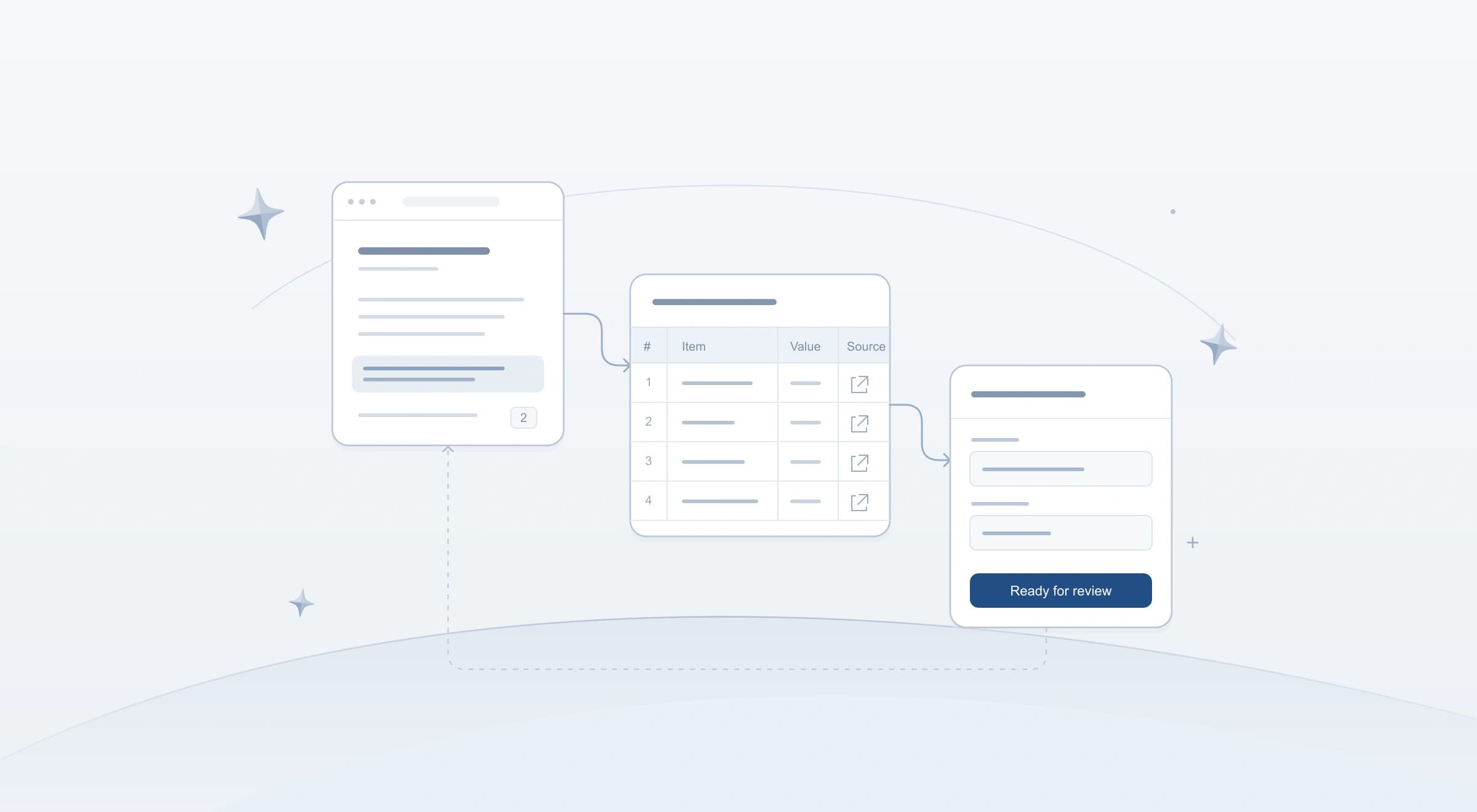
In the previous two guides, we covered agentic search across webpages and Spaces and natural-language web extraction across multiple pages. Real browser work often combines both with live webpage actions. A single task can start with reading several sites, switch to clicking page filters when details are hidden behind buttons, run budget calculations on the collected rows, adapt when requirements change mid-run, and fill the winning option into a web form where you are already signed in.
This guide walks through an end-to-end scenario that connects all of those steps in one Starizon conversation:
Walkthrough Scenario: Collect candidate technical workshops from multiple event websites, filter them by date, location, hands-on lab availability, and team budget, adjust the criteria mid-run ("keep weekend workshops only"), and fill the selected workshop into a signed-in internal training request form while stopping before final submission for your review.
1. How One Conversation Coordinates Research, Data, and Browser Actions
In Agent S6 mode, Starizon coordinates reading, extraction, calculations, and connected tools, and delegates live webpage interactions to its browser agent (Agent S6). Rather than forcing every step through screen-clicking, the conversation uses the right capability for each stage of the task:
| Task Stage | What Starizon Uses | Why It Matters |
|---|---|---|
| Opening and grouping known URLs | Tab and bookmark management | Opens and groups tabs directly without simulating mouse clicks on the address bar. |
| Reading static pages and saved notes | Page reading + @ sources (Spaces, Knowledge Base collections) | Reads full text from open pages and checks it against your saved criteria. |
| Interacting with dynamic page controls | Agent S6 browser actions | Steps in when a site requires clicking Load more, toggling an on-page filter, or opening a detail drawer to reveal hidden dates or fees. |
| Filtering, deduplicating, and calculating totals | Built-in code and file processing (CSV / XLSX) | Runs exact math on fees and discounts rather than estimating numbers in chat text. |
| Filling forms in a signed-in workspace | Agent S6 + review and confirmation controls | Fills fields in your active browser session and stops before submission so you can review the form. |
Why Use Agent S6 Instead of /automation?
Starizon includes an /automation command for standalone browser routines on a webpage. However, /automation runs browser actions on their own without attaching your Knowledge Base collections, Spaces, uploaded spreadsheets, or Skills. Because our workshop workflow combines open event tabs, a saved policy collection, an uploaded budget CSV, and a signed-in request form, select Agent S6 in the mode menu (Modes and Context).
2. Prepare Your Project Materials Before Starting the Run
Set up the four inputs for this illustrative scenario in Chrome:
- Candidate Event Tabs (
@Event Sites): Open the three event directory and organizer tabs you want to evaluate and place them in a Chrome tab group namedEvent Sites. - Saved Policy Collection (
@Team Event Policy): A Knowledge Base collection containing your team's training rules (workshops must take place in November in Seattle, Austin, or live online, stay within an$850per-person budget cap, and offer a hands-on lab track). - Partner Discount Sheet (
team-budget.csv): Use the Upload menu in the chat input to attach a CSV listing negotiated partner discount amounts byworkshop_code(any workshop not listed in the sheet receives a$0discount):
workshop_code,partner_discount_usd
WK-204,50
WK-311,0
WK-108,0
- Target Internal Form (
@Training Request Form): Open the internal portal tab where you are already signed in and where the training request will be entered.
In the chat input Tools menu, enable Knowledge Base and Web (plus Apps if you want to log the final choice to Google Sheets or Notion afterward) so the conversation can read your policy collection and check external organizer FAQ pages if an open tab omits ticket details.
3. Coordinate Reading, Browser Actions, and Iterative Calculations
Start the workflow in Agent S6 mode with a prompt that defines the collection scope, budget calculation, CSV export, shortlist review, and form-filling goals:
Using
@Event Sites, our@Team Event Policycollection, and the uploadedteam-budget.csv:
- Collect November technical workshops from the first 2 pages of each tab in
@Event Sites. If a page hides session dates, hands-on lab details, or material fees inside collapsed detail cards or behind a "Next" button, open those controls to collect the details.- Join the collected workshops with
team-budget.csvonworkshop_code(using$0discount when a code is not in the CSV), calculate the total cost per person (base_fee + lab_fee - partner_discount_usd), and filter for workshops that meet@Team Event Policyand stay within our$850cap.- Export the evaluated workshops as a CSV file, show a comparison table with
workshop_code,title,dates,location,hands_on_lab,base_fee,lab_fee,partner_discount_usd,total_cost, andsource_url, and pause so I can pick which workshop to submit.- After I choose a workshop, fill its details into
@Training Request Form, and stop before submitting the form so I can review the completed fields.
How Starizon Loops Between Reading, Calculation, and Browser Actions
Rather than executing a rigid one-way pipeline, Starizon moves back and forth between capabilities as the task requires:
- Static reading first: On a static schedule page (Tab 1), workshop dates, cities, lab tracks, and fees are already visible, so Starizon reads the page content directly without clicking page controls.
- Interactive pagination when needed: On an interactive directory (Tab 2), Agent S6 clicks Next to collect the second page of listings.
- Looping back to the page when calculations spot a missing fee: Suppose the initial pass over
WK-204captures the$780base ticket and notes"Hands-on lab available", but the lab fee column is blank. Instead of guessing$0, Starizon returns to theWK-204card in the browser, expands its fee breakdown drawer to pull the$60lab materials fee, and re-runs the budget calculation ($780 + $60 - $50 = $790). - Filling gaps from linked pages: When Tab 3 omits whether a hands-on lab track is available, Starizon uses Web search to check the organizer's linked syllabus page before finalizing the table.
4. Adjust Requirements Mid-Run and Respond to Prompts
Suppose the workflow is running when your manager messages you with a new constraint: team members cannot miss weekday sprint reviews in November, so only weekend workshops (Saturday and Sunday) are allowed.
You do not need to discard your setup and start a brand-new conversation.
Send a Mid-Run Update
While the run is active, type the updated rule into the chat input and send it:
Update the filter: only keep workshops held on weekends (Saturday or Sunday). Exclude any session that requires Friday attendance.
Check that your update was delivered in the conversation thread, and verify in the revised shortlist that workshops requiring Friday attendance were excluded.
Three Ways to Interact With an Active or Paused Run
During a multi-step workflow, you have three distinct controls depending on what is happening on screen (Agent S6):
| Situation | What You See in Starizon | How to Respond |
|---|---|---|
| You want to add or refine a rule while the task is running | The run is actively working through steps. | Send a text correction in the chat input, check that it was delivered in the thread, and verify the updated output. |
| Starizon pauses with a blocking question | A question card appears in the conversation (for example, asking which qualifying workshop you want to enter into the form). | Answer using that question card's own options or input control so the paused step can continue. |
| You click Stop to pause the run | The run pauses after canceling and wrapping up the step in progress. Any clicks or text already sent to a webpage remain in place on that page. | Click Continue on the paused run if you want to resume that same run. Sending a new message from the main chat input starts a new task instead of resuming the paused one. |
5. Verify the Extracted Shortlist and Select the Winner
Here is an illustrative example of the shortlist table and CSV output produced after applying the weekend-only rule and joining with team-budget.csv (Total Cost = Base Fee + Lab Fee - Discount):
| Workshop Code | Title | Dates (Days) | Location | Hands-On Lab | Base Fee | Lab Fee | Discount | Total Cost | Status | Source URL |
|---|---|---|---|---|---|---|---|---|---|---|
WK-204 | Production Kubernetes & Observability Lab | Nov 14-15 (Sat-Sun) | Seattle, WA | Available (extra fee) | $780 | $60 | $50 | $790 | Qualifies | https://events.example.com/workshops/wk-204 |
WK-311 | Applied LLM Evaluation Workshop | Nov 21-22 (Sat-Sun) | Live Online | Available (fee included) | $690 | $0 | $0 | $690 | Qualifies | https://cloudconf.example.org/labs/wk-311 |
WK-108 | Distributed Systems Intensive | Nov 13-14 (Fri-Sat) | Austin, TX | Available (extra fee) | $750 | $50 | $0 | $800 | Excluded (includes Friday) | https://systems.example.net/training/wk-108 |
Before selecting WK-204 in the question card, run a quick check on the intermediate output:
- Check the conversation report and exported CSV: Confirm in the conversation summary that all three tabs in
@Event Siteswere read without errors, and download the generated.csvfile card to check the full row set (Extracting and Processing Data). - Spot-check the winning source page: Open the
Source URLforWK-204to confirm the Nov 14-15 weekend dates and the$60lab fee on the organizer's page. - Select your choice: Choose
WK-204using the question card's control so Agent S6 proceeds to fill@Training Request Form.
6. Fill the Signed-In Form and Review Before Submission
In the final stage, Agent S6 switches to your open @Training Request Form tab (where you are already signed into your workplace portal) and enters the verified details:
- Event Name:
Production Kubernetes & Observability Lab (WK-204) - Dates:
2026-11-14to2026-11-15 - Location:
Seattle, WA - Requested Budget:
$790.00 USD ($780 base + $60 lab fee - $50 partner discount) - Justification: Matches
@Team Event Policy(November weekend session, Seattle location, includes hands-on lab track).
Review the Completed Form and Confirmation Controls
When automating form filling, purchases, or record updates, build an explicit review stop into your request: ask Starizon to stop before submission so you can review the completed form. If a confirmation card appears, respond through its controls.
Keep two guidelines in mind during this step:
- Use the confirmation controls when prompted: Inspect the recipient, field values, and selected options on the
@Training Request Formtab first. When a confirmation card is waiting in the conversation, approve or cancel using that card's own controls rather than sending a separate plain-text message. - Do not type into the webpage form while the agent is operating it: If you want to change a field before submitting (for example, adding a cost-center code), ask Starizon to update that field or pause the run before typing into the form yourself.
7. Log to Connected Apps, Save to a Space, or Schedule Weekly Checks
Once the form is reviewed and submitted, you can extend the workflow across your connected tools and future sessions:
- Log the decision to Google Sheets or Notion: With Apps enabled in the chat input Tools menu (Apps and MCP), ask Starizon to append the selected
WK-204row and the evaluated table to your team's training tracker in Google Sheets or create a summary brief in Notion, then open the returned link to verify the entry. - Save to a Space: Save the conversation, the exported CSV of evaluated workshops, the uploaded
team-budget.csv,@Event Sites, and@Team Event Policyinto a Space namedQ4 Team Training(Spaces). Next month, select@Q4 Team Trainingin a new chat to filter the saved table under new constraints or re-read the live event pages for updated dates. - Monitor Event Pages for Changes: If a preferred workshop is waitlisted or you want to watch an organizer page for newly added weekend dates, use Page Monitors (
/monitor) to track page changes and get notified (Page Monitors). - Schedule Recurring Checks: Use
/scheduleor Tools -> Schedule (Schedules) to run a recurring workflow, such as re-checking the event directory URLs every Monday morning against@Team Event Policyandteam-budget.csvto surface newly added weekend workshops. Scheduled tasks reopen the saved page URLs and use the materials and tools configured on the schedule, running while Chrome is running and your device is awake (scheduled agent runs pause after 10 minutes, and paused runs expire after 24 hours).
Want to revisit a specific part of this workflow? Start from the beginning with Introducing Starizon: An Agentic Workspace for Chrome, review large-scale search across project materials in Agentic Search Across Multiple Webpages and Spaces, or dive into multi-page extraction in Natural-Language Web Extraction Across Multiple Pages.