Natural-Language Web Extraction Across Multiple Pages
Extract data from multiple webpages to CSV or Google Sheets without code. Name the fields in plain language and get a table with a source link for every row.
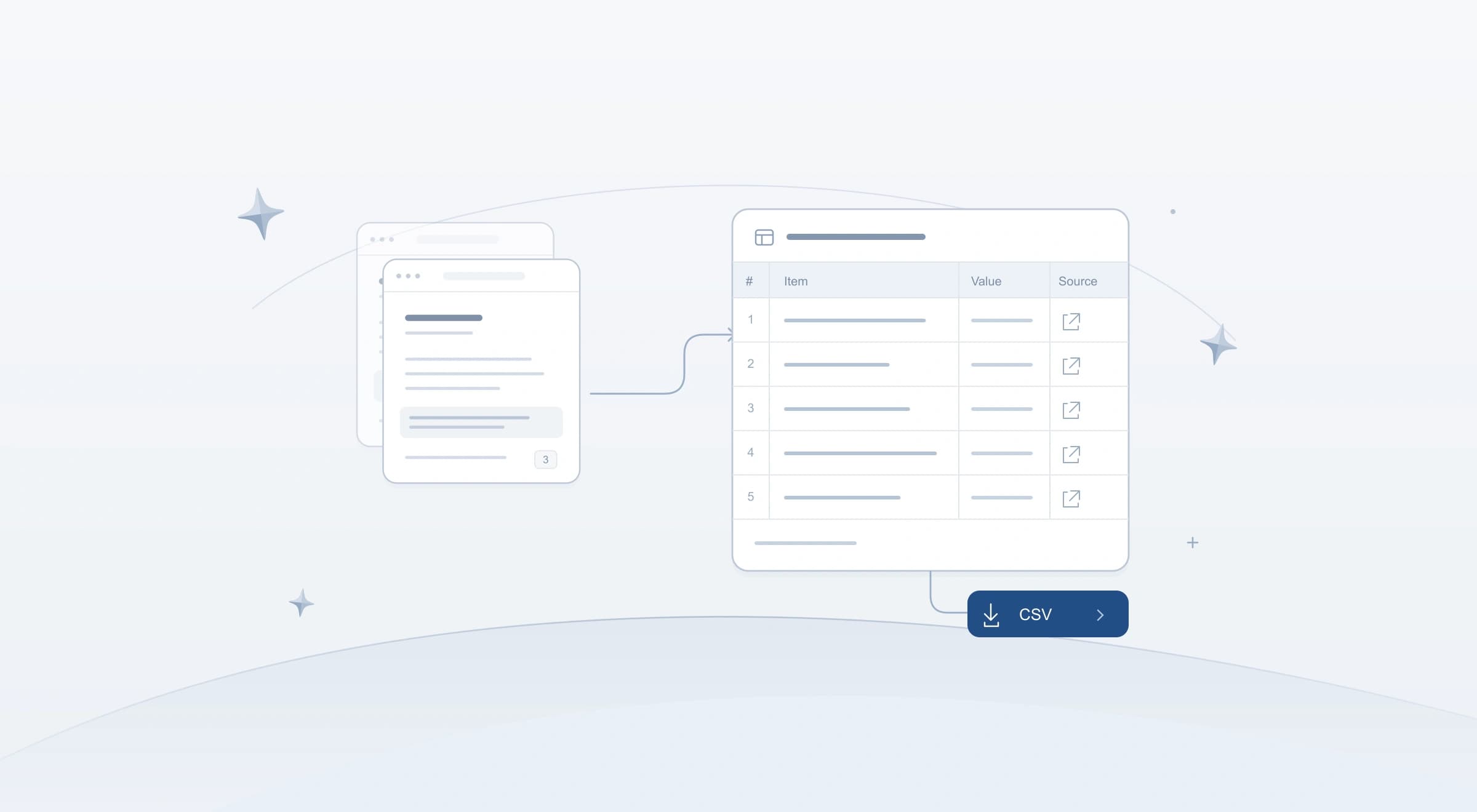
Collecting structured data from multiple webpages usually forces a trade-off between brittle scripts and manual copy-pasting. If you only need a dataset once or twice a week, writing Python scripts, inspecting DOM trees for XPath or CSS selectors, or wiring up a node-by-node scraping workflow takes longer than the task itself. At the same time, asking a language model to copy and re-type hundreds of listing rows in a chat response is slow and risks truncating long tables.
Starizon is not a standalone web-scraping IDE; data extraction is a built-in capability inside your browser assistant. You point to a set of open tabs or a Chrome tab group and describe what you want in plain language: "From my Catalog Pages tab group, extract the book listings and keep site, item_code, isbn, title, price_raw, rating_raw, availability, and detail_url." Starizon identifies the target records and sample fields, collects the matching DOM text and links in bulk across your pages, and lets you parse, filter, download a CSV, or send the rows to connected workspace tools like Google Sheets or Notion.
1. How Starizon Combines Natural Language with Structural Extraction
Traditional web scrapers rely on hand-written DOM selectors that break when a site updates its markup or when your tabs come from different websites. Conversely, having a model generate every table cell token-by-token in chat text does not scale to large listings.
When you run an extraction task in Starizon, the assistant divides the work between model understanding, programmatic DOM collection, and code-backed processing:
- Describe target records and fields in plain language: You name or select a Chrome tab group (such as
@Catalog Pages) or a set of open tabs and specify the exact fields you want to collect. - Model-guided pattern recognition and programmatic bulk collection: Rather than re-typing an entire webpage row by row, the model inspects the captured page structure, distinguishes between a single-record detail page and a repeating list of items, and locates sample records and fields. From those samples, Starizon compiles structural extraction rules and collects the raw node text, links, and image URLs in bulk from the captured DOM.
- Sample repair and explicit status tracking: When certain cards on a page omit an optional badge or vary slightly in structure, Starizon attempts to repair anomalous samples so those rows can still be collected. If a page layout diverges too far or a tab cannot be read, Starizon marks the source as
partialorfailedand preserves missing fields as empty cells rather than guessing values. - Normalize and filter on the full dataset: Once the raw text and links are collected into a structured table, Starizon can run code in the same task to parse numeric prices and rating scales, confirm currency codes from page evidence, join with uploaded spreadsheets, and export the result while keeping the original raw strings alongside the normalized columns.
2. Choose Your Entry Point: AI Chat, /extract, or Agent S6
Depending on whether your target pages are already open at fixed URLs or require live page interaction to reveal more items, choose from three entry points (Extracting and Processing Data):
| Entry Point | Best When You Want To... | How It Accesses Pages |
|---|---|---|
| AI Chat | Describe your extraction in natural language across open tabs or a tab group, and combine the result with code normalization, uploaded files (CSV / XLSX), a Space, Knowledge Base collections, or connected Apps / MCP. | Reads open tabs, tab groups, and pages with distinct URLs (such as ?page=1 and ?page=2). |
/extract command | Run a standalone raw extraction from selected open tabs or pages without combining uploaded files or saved Knowledge Base collections. | Reads the selected open pages or fixed URLs. |
| Agent S6 | Extract from pages that require live interaction first: clicking a Next button that does not change the URL, clicking Load more, toggling on-page filters, or opening detail drawers. | Operates the webpage controls directly, then passes the collected records to the same extraction and data tools. |
Fixed URLs vs. Interactive Pagination
If you already opened the target pages in a Chrome tab group (or if you paste a list of distinct page URLs like ?page=1 through ?page=5 and ask AI Chat to open and extract from them), AI Chat extracts across the batch without needing to simulate mouse clicks.
If new rows only appear after clicking Next, Load more, or an accordion control on the live page, switch the mode menu to Agent S6 and state a clear stopping condition in your prompt (for example, "click Load more up to 3 times" or "collect the first 50 listings").
3. Extract Across Multiple Pages with a Natural-Language Prompt
Because the DOM extractor reads raw text and links from page nodes, the cleanest workflow extracts the original price and rating text first, and then parses numeric amounts, rating scales, and confirmed currency codes while keeping the original values for verification:
- Group or open your target tabs: Put the listing tabs into a Chrome tab group (such as
Catalog Pages), or ask AI Chat to open a bookmark folder into a tab group first (Bookmarks and Tabs). - Choose your sources: Name the
Catalog Pagestab group in your prompt, or select@Catalog Pagesfrom the@menu when you want to point to an exact tab group or disambiguate tabs with similar titles. - Extract raw fields and parse normalized columns:
From
@Catalog Pages, extract all book listings into a dataset withsite,item_code(keep as text so leading zeros like001stay intact),isbn,title,price_raw,rating_raw,availability,detail_url, andsource_url.
Then parseprice_rawandrating_rawto addprice_amount,currency_code(set to an ISO code likeUSDonly when the source page confirms it; do not assume$isUSD),rating, andrating_scalealongside the original columns. Leave missing prices or ratings empty rather than filling in0.
Page Recovery and Partial Batch Results
When extracting across multiple tabs, Starizon tracks the status of each source page separately (completed, partial, or failed). If a tab in @Catalog Pages is sleeping or temporarily unreadable, Starizon first attempts to recover and read the page automatically while preserving all rows extracted from the other tabs. If a page still requires you to sign in or reload it manually, Starizon reports which source failed so you can reload that tab and retry before treating the table as complete.
4. Deduplicate, Join, and Reuse the Full Dataset
Once Starizon extracts the structured rows from your pages, it saves the full dataset as a working file in your conversation rather than keeping only the short preview table shown in chat.
Suppose you want to compare book offers across multiple stores and apply a store-specific discount file (partner-discounts.csv) uploaded via the Upload menu:
site,item_code,discount_usd
StoreA,001,0.00
StoreB,042,8.00
When the same book (isbn) is sold by two stores at different prices and discounts, deduplicating by isbn too early would drop one store's quote before you compare net prices. Instead, remove duplicate captures within each store first, join the store discounts, and then pick the lowest net price per book:
Using the extracted dataset from
@Catalog Pagesand my uploaded filepartner-discounts.csv:
- Remove duplicate listings within the same store by
site + item_code(ordetail_url), then join withpartner-discounts.csvonsiteanditem_codeto calculatenet_price(price_amount - discount_usd, treating unmatched items as0discount).- Keep in-stock items where
currency_codeis confirmed asUSDandnet_priceis under45.00, and select the lowestnet_priceoffer for eachisbn.- Place any items with missing prices or unconfirmed currency symbols into a separate review table, and export the final shortlist as a CSV file.
Because the full working dataset stays in your conversation, you can run follow-up variations without re-extracting from the webpages:
Keep the original extracted table, and export a second CSV version filtered for a stricter
$30.00budget.
When filtering or combining data across multiple sites, keep four rules in mind:
- Match your deduplication key to the stage of the task: On a multi-item catalog page, rows share the same listing
source_url, so never deduplicate by listingsource_url. Usesite + item_codeordetail_urlto remove duplicate captures of the same store listing, and group byisbnonly when choosing a single winning offer per book. - Keep string identifiers as text: Product codes like
001or ISBNs starting with0lose leading zeros if parsed as numbers. - Keep raw text alongside parsed numbers: Retaining
price_rawandrating_rawnext toprice_amount,currency_code, andrating_scalemakes it easy to audit parsed values and spot ambiguous$symbols. - Separate missing values from zeros: An item with no listed price should not pass a
net_price < 45.00filter as if its price were0.
5. Download the CSV or Send to Connected Workspace Tables
In the conversation thread, Starizon displays a markdown preview table so you can inspect sample rows and column headers quickly. Do not copy the chat preview table as your final dataset, because chat previews shorten long tables for readability.
Option A: Download the Complete CSV File
- Locate the generated
.csvfile card in the conversation and click Download. - Temporary files generated during a session can expire later (History and Files). Download important exports right away, or save the task to a Space (Spaces) if you want to run new filters on the same table in a future conversation.
- Importing into Excel: When importing the CSV into Excel, set identifier columns (such as
item_codeandisbn) to Text to preserve leading zeros. Even when the CSV file stores"001"accurately, opening a CSV directly in Excel with defaultGeneralformatting can auto-convert001to1.
Option B: Send Extracted Data to Google Sheets, Notion, or MCP Tools
Instead of downloading a CSV and importing it by hand, you can send the extracted dataset directly to a connected spreadsheet or workspace database (Apps and MCP):
- Connect the integration: Open Tools -> Connections in the top toolbar and connect your account under Apps (such as Google Sheets or Notion), or configure a remote MCP server under Connections -> Sources -> Add custom MCP for other workspace tools.
- Enable it for the conversation: Open the chat input Tools menu and turn on Apps or MCP.
- Name the exact destination: Ask Starizon to write the extracted table to your target sheet or database and return the link:
Send the full filtered table to a new sheet called "Catalog Shortlist" in my connected Google Sheets account, including the
detail_urlandsource_urlcolumns, and return the sheet link. - Verify at the destination: Open the link returned by the app and confirm that the row count and columns match your extracted dataset.
Quick Verification Checklist
Before sharing your exported CSV or connected sheet, run a four-point check:
- Source coverage and row counts: Did every tab in your group complete (or did any tab report
partialorfailedstatus), and do the raw vs. deduplicated row counts match your expectations? - Identifiers and leading zeros: Confirm in a text preview or via Text-formatted import that codes like
001kept their leading zeros and all pages mapped into the same columns. - Source link spot-check: Open
detail_urlorsource_urlon two or three rows to verify that the extracted fields match the live page. - Missing-value and currency check: Review the separate table of rows with missing prices or unconfirmed currency symbols so valid candidates were not silently dropped.
Next in this series: see how multi-page research, natural-language data extraction, mid-run updates, and live browser actions come together in Combining Research, Data Processing, and Browser Automation, or review large-scale agentic search in Agentic Search Across Multiple Webpages and Spaces.