Agentic Search Across Multiple Webpages and Spaces
Ask one question across open tabs, Spaces, Knowledge Base collections, and uploaded files, then check each claim against the section it came from.
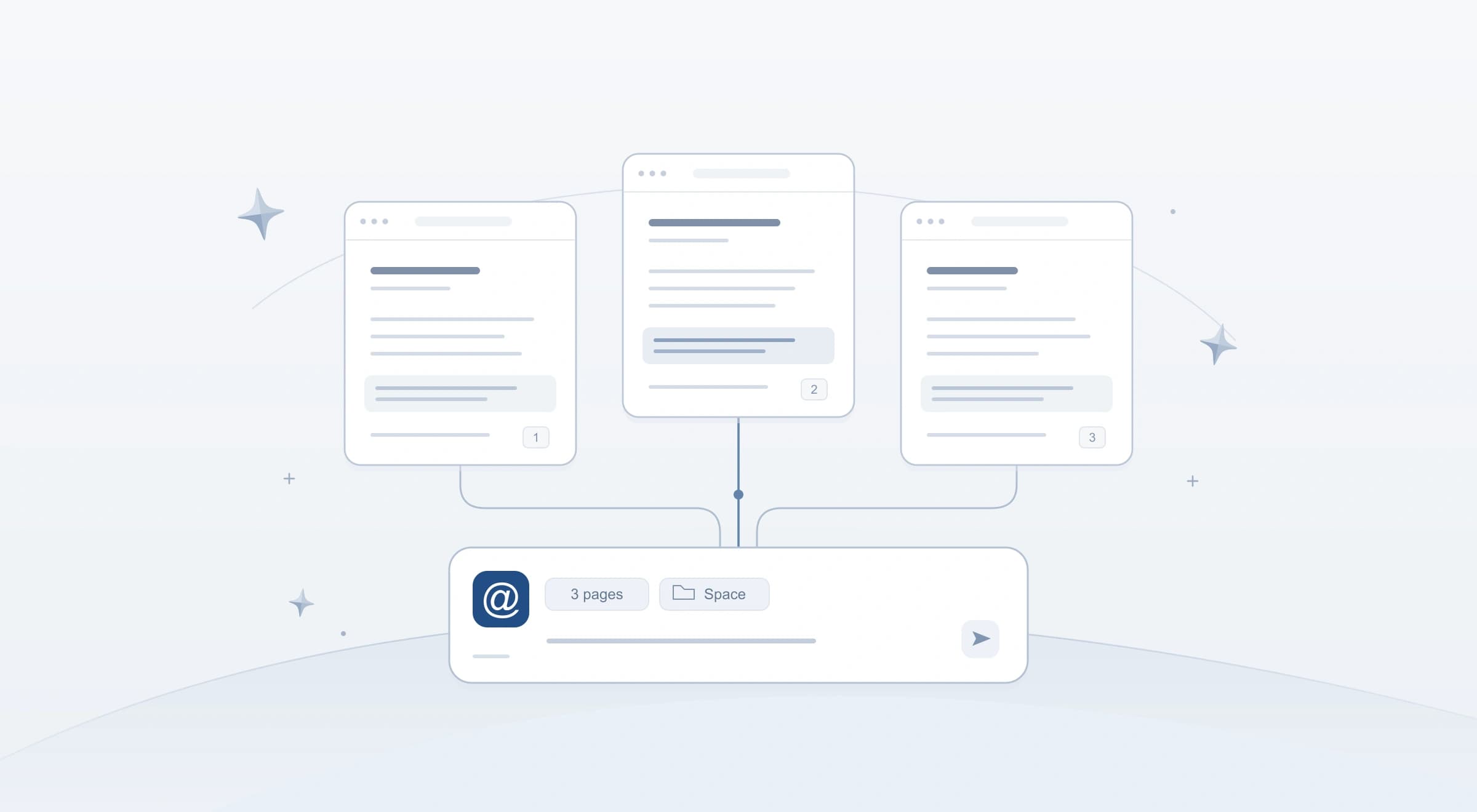
Summarizing two or three webpages in a single pass is straightforward, but real project research rarely fits into one prompt window. A typical evaluation might span fifteen open vendor tabs across Chrome tab groups, a saved Space from last week's review, a Knowledge Base collection of internal security rules, and several uploaded spreadsheets or PDFs. Cramming all of those materials into a single prompt pass either overflows the context limit or glosses over conflicting clauses buried in the middle.
In Starizon, AI Chat approaches large sets of project materials through agentic search. Instead of relying on a single-pass summary, Starizon organizes your selected sources, searches prepared page and file content, retrieves relevant Knowledge Base passages, and reads deeper into specific sections when the question needs more evidence.
1. How Agentic Search Works Across Project Materials
When you work with a large batch of webpages, saved notes, and uploaded files in AI Chat, Starizon adapts how much it reads to what your question actually needs:
- Unified project scope: A single conversation can search across open tab groups, signed-in pages, saved Spaces, Knowledge Base collections, and uploaded documents or spreadsheets.
- Source inventory and structural previews: When the selected materials exceed what fits in a single pass, Starizon prepares a source inventory with coverage status, section headings, and short previews instead of blindly truncating the input.
- On-demand deep reading when evidence is missing or conflicts: If the initial material already answers a straightforward question, Starizon can respond directly. When a mechanism is unexplained, a key detail is missing from the preview, or two sources appear to disagree, Starizon searches across the captured materials and reads the relevant sections in full. For example, if a vendor's pricing page lists
SSO includedon the Pro plan while their security FAQ restrictsSAML SSOto the Enterprise tier, Starizon can inspect both sections to surface the exact condition. - Scoped retrieval with optional web search: Starizon checks your selected Knowledge Base collections and Spaces first. When an attached page omits a public detail, you can enable Web search to check external documentation while keeping your saved materials and public web sources clearly distinguished.
Choose the Right Entry Point: AI Chat vs. /research
Starizon provides two distinct paths for research (Reading and Research):
| Entry Point | Sources It Can Search | Best When You Need To... |
|---|---|---|
| AI Chat (with optional Web tool) | Your open tabs, tab groups, Spaces, Knowledge Base collections, and uploaded files, plus public web search when Web is enabled. | Search and compare across your open tabs, signed-in pages, uploaded spreadsheets, and saved project context. |
/research command | Public web sources only (runs as a hosted background task after you review and approve a research plan). | Generate a standalone background report on a public topic without reading your open tabs, signed-in pages, Knowledge Base, or Spaces. |
Whenever your task involves open tabs, signed-in websites, uploaded files, Spaces, or Knowledge Base collections, work in AI Chat.
2. Assemble and Choose Your Project Materials
You can refer to your open tabs, tab groups, or bookmark folders in natural language, or pick specific items from the @ and Upload menus when you want an exact scope.
Turn Bookmarks or Scattered Tabs into a Tab Group
If your candidate pages are spread across Chrome or stored in bookmarks, ask AI Chat to gather them into a Chrome tab group first (Bookmarks and Tabs):
Find my bookmarks in the "Q4 Analytics Vendors" folder from the last 30 days, open them into a Chrome tab group named "Vendor Docs", and list the opened tabs.
Choose Specific Sources with @ and Upload Files
When you want to point to specific resources (or disambiguate two open tabs that share the same title, such as API Reference), use the @ menu and the Upload menu:
- Tab groups or individual tabs:
@Vendor Docs,@Vendor A Pricing,@Vendor B Security FAQ - Project Spaces:
@Analytics Evaluation(bringing in saved pages, earlier conversation findings, and generated CSV files from prior sessions) - Knowledge Base collections:
@Security Requirements(the@menu lets you choose All knowledge or a specific Collection; to target a particular note inside a collection, select the collection with@and name the note in your prompt) - Uploaded files and tables: Use the Upload menu to add local
CSV,XLSX,PDF, orMarkdownfiles alongside your open tabs.
Save Unfinished Forms First: If one of your open tabs has text typed into an unsaved form, save your draft on that page before running tasks that may refresh or reopen the tab.
Set Space Reading Preferences for Saved Webpages
When you attach a Space that contains saved webpages, you can choose how Starizon reads those pages in the Space reference settings (Spaces):
| Preference | Reading Order | Best When You Want To... |
|---|---|---|
| Prefer the original tab (default) | Original open tab -> Saved snapshot | Use the live tab if it is still open, and fall back to the saved snapshot if the tab was closed. |
| Prefer a fresh page | Newly opened page -> Original open tab -> Saved snapshot | Check the current webpage for recent updates, falling back to the open tab and then the saved snapshot if loading fails. |
| Prefer the saved snapshot | Saved snapshot -> Original open tab | Compare against the point-in-time version you saved earlier, falling back to the original open tab only if no snapshot is available. |
When an answer draws from a saved snapshot rather than a live page, ask Starizon to note the snapshot version or date, especially for pricing, policies, or availability that change over time.
3. Search and Compare Across Pages, Files, and Collections
To get a verifiable comparison across a large set of materials, state the comparison criteria, point to your sources, and ask Starizon to separate stated facts from unstated policies:
Search across the pages in
@Vendor Docs, our prior findings in@Analytics Evaluation, the uploadedvendor-questionnaire.xlsx, and the "Cloud Vendor Checklist" note in our@Security Requirementscollection.
Build a comparison table with one row per vendor and columns for:
- Data residency regions
- SSO / SAML support and which plan tier includes it
- Audit log retention period
- Status against our checklist in
@Security Requirements(Met, Not met, or Not stated in the attached sources).
For every cell, cite the source (tab name, Space item, or uploaded file) and the section heading where the detail appears. If a source does not state a policy, write "Not stated on this page" rather than assuming.
4. Check Source Coverage and Handle Unreadable Pages
When working across many pages and files, distinguish between listing tabs and reading their content, and check whether every selected source was readable.
Listing Tabs vs. Reading Page Content
When you ask Starizon to organize tabs or list what is open, it inspects tab titles and URLs. When you ask it to search and compare content across @Vendor Docs, it captures the body text of those pages.
While Starizon reads a batch of pages, the progress card in the conversation shows a short inline preview so the chat thread stays compact. That preview is shortened for display; Starizon keeps the full captured snapshots and uploaded files available so it can search and read specific sections as needed.
Automatic Recovery and Manual Sign-In Fallback
In a large multi-page task, a tab might be sleeping in the background or temporarily unreadable. Starizon first attempts to recover and read eligible pages automatically while preserving the snapshots from all pages that succeeded.
If a tab still cannot be read (for example, because a session expired behind a login screen or hit an HTTP error), Starizon flags that specific source as unreadable rather than silently dropping it from the comparison. You can sign back in or reload that tab in Chrome and follow up in the same conversation:
I signed in and reloaded
@Vendor D Security FAQ. Read that tab now and update the comparison table with Vendor D's details.
5. Resolve Contradictions and Fill Gaps with Web Search
An overview table maps the landscape across your sources, but important decisions require checking the exact wording when two sources appear to conflict. Confirming that a URL was captured is not the same as verifying a claim. You verify a claim by inspecting the specific section and quoted passage.
Drill Into Conflicting Clauses Across Sources
Suppose a vendor's pricing tab lists SSO included under the Pro plan, while their security FAQ tab or your uploaded vendor-questionnaire.xlsx mentions an Enterprise requirement. Ask a follow-up question in the same conversation to inspect the exact sections:
Compare what
@Vendor B Pricing,@Vendor B Security FAQ, andvendor-questionnaire.xlsxsay about SSO and SAML. Quote the exact sentences from each source, explain whether the Pro tier supports SAML SSO or only OAuth login, and check whether that meets item 2 in our@Security Requirementscollection.
Temporary page snapshots captured during a chat can expire later. If you plan to return to these sources in future sessions, save the pages and files into a Space or save verified excerpts into a Knowledge Base collection (History and Files).
Supplement Attached Sources with Public Web Search
If you want Starizon to answer strictly from your selected materials, include "use only the attached sources" in your prompt. When an open tab omits a public specification (such as an uptime SLA percentage), enable Web in the chat input Tools menu and ask a targeted follow-up:
@Vendor C Pricingdoes not list their uptime SLA percentage. Search the web for Vendor C's official SLA documentation, compare it with the terms in@Vendor C Pricing, and label which facts came from my attached sources versus public web search.
6. Turn Findings Into Inputs for Your Next Task
Once you have verified the passages that support your decision, save them so your next session builds on verified work rather than starting over from raw tabs:
- Highlight on the source page: Switch to the source tab and ask Starizon (or run
/highlight) to highlight the key clauses directly on the webpage. - Save to your Knowledge Base: Save those highlights or your verified comparison notes into a Knowledge Base collection via Tools -> Knowledge Base (Knowledge Base).
- Save to a Space for follow-up analysis: Choose Save as Space or Add to Space to keep the comparison table, the source pages, and your uploaded files together. When requirements change next week, you can attach the Space to filter or re-evaluate the saved table directly, and re-read the live pages only when prices or policies need updating.
Quick Verification Checklist
Before acting on a multi-source analysis, run through these four checks:
- Clear source scope: Did you name or select the intended tab groups, Spaces, Knowledge Base collections, and uploaded files (and use
@if any tabs share duplicate titles)? - Source coverage: Did all selected pages and files return readable content, or did any tab remain unreadable after automatic recovery and need a manual sign-in or reload?
- Explicit unknowns: Does the comparison separate stated facts from unstated policies (
Not stated on this page) and distinguish attached sources from public Web search? - Passage verification: Where sources disagreed or a criterion was decisive, did you check the section heading and quoted wording against the source?
Next in this series: see how natural-language extraction compiles structural rules to pull tables across multiple webpages in Natural-Language Web Extraction Across Multiple Pages, or return to Introducing Starizon: An Agentic Workspace for Chrome.