Search Chrome Bookmarks with AI: Find the Ones You Forgot
Describe a bookmark the way you remember it and Starizon finds it. Search by topic, folder, site, date saved, or last opened, then open, read, or file the results.
You saved it for a reason. It was a pasta recipe, a few months ago, from some food blog. Today it is one of 2,400 bookmarks in folders you named years ago, and Chrome's own search will find it only if you can produce a word from its title.
With Starizon you describe that memory in whatever shape it has, vague parts included, and it searches the whole library for you. What it finds can go straight into the next step of the same request: opened as a tab group, read, highlighted, or filed into a folder.
Few AI assistants touch your bookmarks at all. We wanted one that treats them as what they are, a personal library built up over years, and that can search it without shipping the library off to a model.
Describe It the Way You Remember It
Open the Starizon side panel and say what you remember. The first time, you will be asked to allow access to your bookmarks.
Find the pasta recipe I bookmarked a few months ago. I think it was from a food blog.
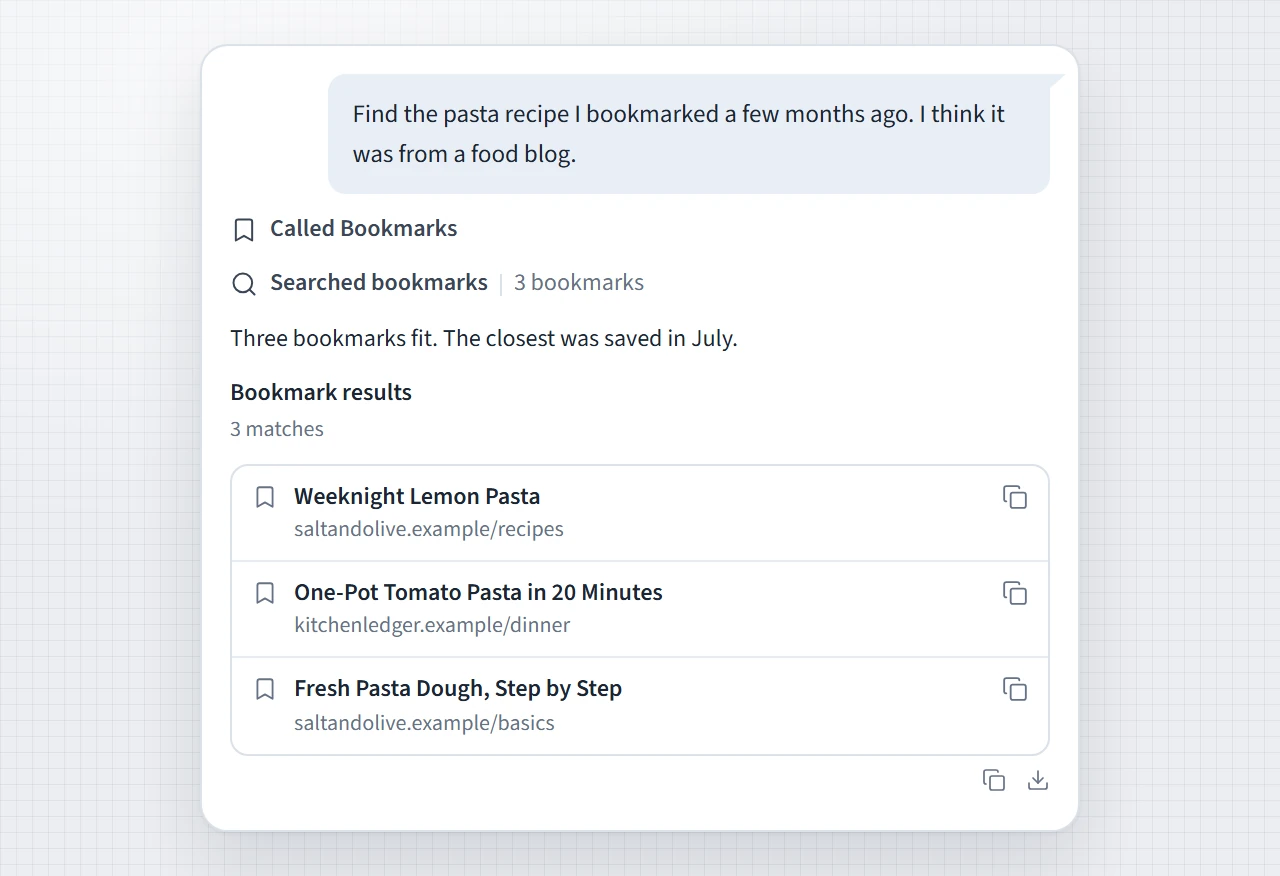
The matches come back as a list under the answer, and each row opens its page. The list is also yours to take away. Chrome's own export hands you every bookmark you have in one file. Here you can download only this result as a bookmark HTML file, so the fifteen articles you collected on one topic can go to a colleague, or into another browser, without the other 2,385.
If a search is all you want, typing /bookmarks in the chat input goes straight to it.
Clues That Narrow the List
A vague memory works because several weak clues, taken together, are strong. Use whichever you have, in your own words:
| What you remember | Say it like this |
|---|---|
| The topic | "bookmarks about deploying Next.js" |
| A word in the title | "with java in the title" |
| The folder | "in my Coffee folder" |
| The site | "from github.com" |
| When you saved it | "saved in the last two weeks", "from before 2023" |
| When you last opened it | "that I haven't opened since January" |
| That you never went back | "that I've never opened" |
| That you saved it twice | "duplicates" |
| How many, in what order | "the 20 oldest", "newest first" |
Clues combine in one sentence, such as "everything from github.com that I saved this year and never opened", and they can exclude as well: "what's in Read later, except YouTube".
Two of these deserve a note. "Never opened" rests on a record Chrome keeps: it stamps a bookmark when you open the page from the bookmark itself. Reaching the same page another way, by typing the URL or following a search result, does not count, and neither do visits from before Chrome kept this record. So read "never opened" as "never opened from the bookmark", which is the signal you want when you are hunting for bookmarks that are gathering dust. A date condition such as "not since January" covers only bookmarks that have a record, so ask for both when you want both.
The other note is about folders. A folder name with no location means the folder under your Bookmarks bar, and when two folders could match, Starizon asks which one you mean before it searches.
How It Searches 2,400 Bookmarks Without Sending 2,400 Bookmarks
When your request starts, the extension takes a snapshot of your bookmark library and keeps it on your device. The search then runs as a loop between the model and that snapshot, with each side doing the job it is good at:
- The model reads your sentence and turns it into search terms and conditions. This is where meaning comes in. For "deploying Next.js" it can also try the words such a page is likely to use, like "Vercel" or "hosting".
- The extension runs the search against the snapshot. It matches words in titles, folder names, site names, and URL paths, and it works out the exact conditions itself: dates, folders, sites, and duplicates are computed and never guessed.
- Only the matches go back to the model, as a short list of titles, folders, sites, and shortened URLs. The model picks the best fit, or tightens the search and goes around again.
So the model works from the rows that matched, a page at a time, and the rest of your library never leaves the extension. Even for the rows it sees, the URL is cut down to the site plus a few words of the path. The query string and long IDs are left out, because that is where session IDs, tokens, and search terms tend to sit. By default the full URLs stay with the extension, which uses them when you open, copy, or export a result. They are shared only when your request needs the links themselves, for example to read the pages or to pass them to a connected app.
Two limits follow from this design, and you should know both. The search matches words in titles, folders, and URLs. It does not read the bookmarked pages, so a match tells you the label fits, and it cannot tell you what the page says today. The search also has a fixed budget of steps. On a very large or very vague request it can run out before every candidate is checked, and when that happens the result says how many bookmarks it got through, so you know to narrow the request.
Finding It Is the First Half
The bookmark you were looking for is rarely the end of the errand. The rest fits in the same sentence.
Open everything I bookmarked for my Japan trip in one tab group called "Japan".
Find the sleep article I bookmarked last month, open it, and highlight the practical tips.
Filing works the same way. Ask Starizon to "bookmark the source pages from this comparison in my Camera research folder" and it saves them there, skipping any link the folder already holds. If the folder does not exist yet, it is created under your Bookmarks bar, and if a few similar folders exist, you are asked once which one you meant.
Moving bookmarks comes with a receipt:
Move the bookmarked espresso guides from Read later to Coffee. Keep the other bookmarks where they are.
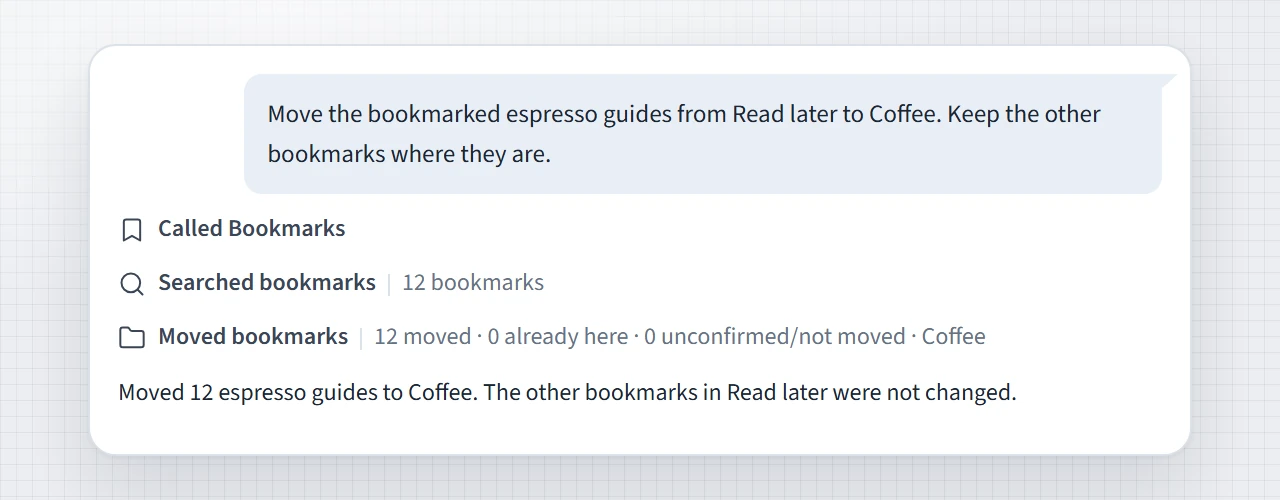
Starizon does not assume a move worked. Each bookmark is checked against what Chrome reports back: the same bookmark, in the new folder, with its title and URL untouched. The receipt then counts what was moved, what was already there, and anything it could not confirm, which gives you the audit without opening the bookmark manager.
Find the Dead Ones, and Keep the Live Ones
Anyone with a thousand bookmarks owns a share that lead nowhere, and the painful part of a dead link is that what the page said is gone with it.
Importing bookmarks into your Knowledge Base deals with both problems. In the Knowledge Base panel (Tools > Knowledge Base), start an import, choose From bookmarks, and pick the ones to bring in. Starizon fetches each page and stores its content in your browser. Pages that no longer exist are listed under No longer online, which is the dead-bookmark report Chrome never gave you. Sites that block automated reading are listed separately, with a way to open them in a real tab.
The pages that are still alive become saved copies. You can search them and ask questions about what they say, which bookmark search alone cannot do, and they stay readable if the original disappears next year.
What It Will Not Do
Searching never changes a bookmark. Starizon adds or moves bookmarks only when you ask, and it never deletes one, renames one, or edits its URL. A move changes the folder and nothing else, and two bookmarks that point to the same page are never merged behind your back.
It has edges too. It moves bookmarks and not folders, so relocating a whole folder with its subfolders is still a drag in Chrome's bookmark manager. New and moved bookmarks land at the end of their folder. And on the free plan, bookmark questions have a daily limit.
Next: Organize Too Many Chrome Tabs with AI covers the tab side. More in the docs: Bookmarks and Tabs.
Try it with your own pages
Install Starizon in desktop Chrome or Vivaldi for Android, then follow the setup guide to run your first task.