Starizon on Android: An AI Workspace Extension for Vivaldi
Run Starizon in Vivaldi on Android: summarize, highlight, and save pages from the popup, or open the workbench for multi-tab research and Agent S6 tasks.
Desktop browsers give AI extensions a convenient luxury: a wide split screen where a persistent side panel can sit beside the webpage you are reading. On a phone, that layout does not exist. Because of that constraint, most mobile AI tools reduce browser assistance to either a single-page summary sheet or a standalone chat app disconnected from your open tabs.
With Vivaldi 8.2 bringing Chrome Web Store extension support to Android, Starizon brings its AI workspace extension to Vivaldi for Android, making most of its desktop workspace capabilities available on your phone.
Instead of squeezing a desktop side panel into a narrow mobile viewport, we adapted Starizon around a two-surface mobile architecture:
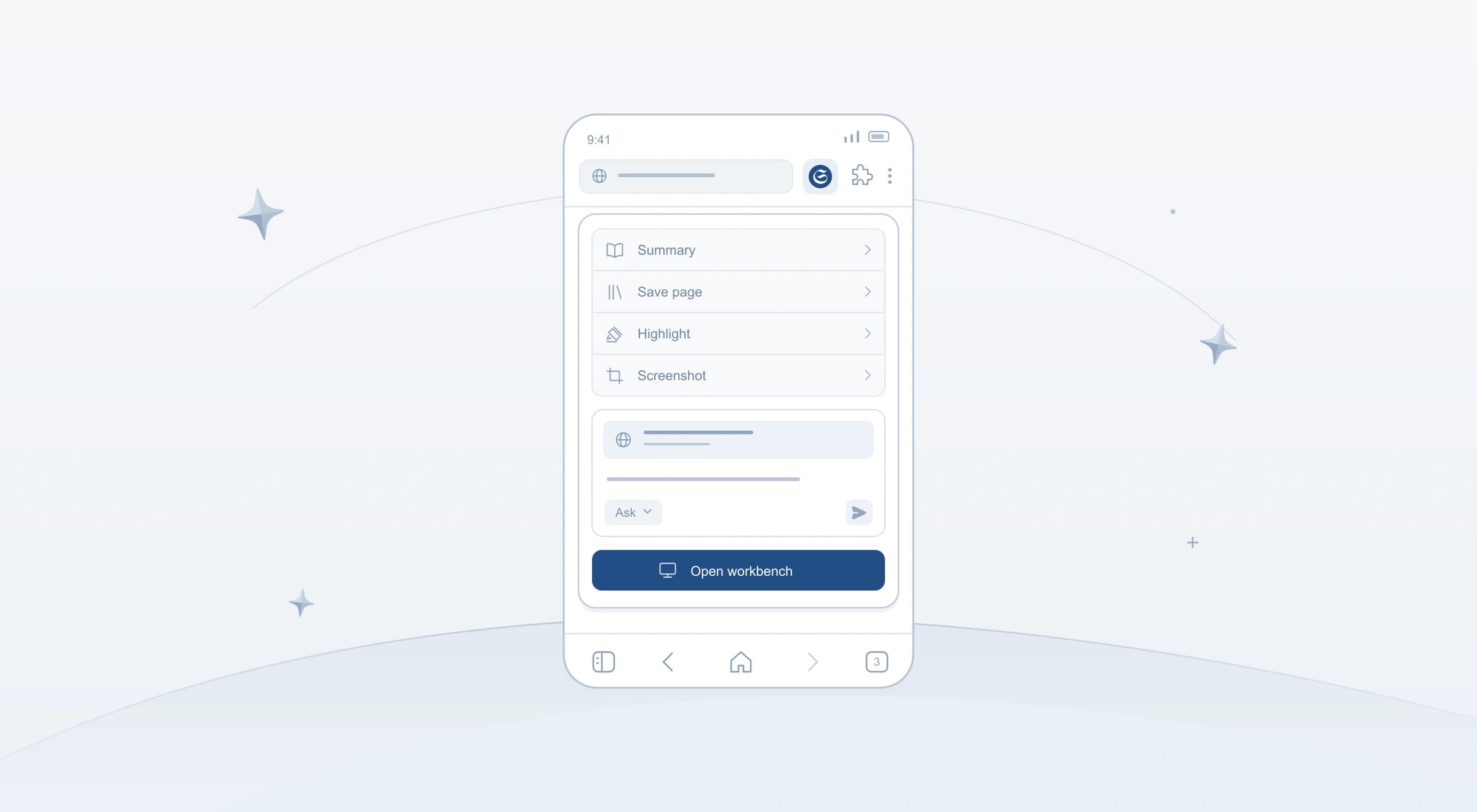
- A Toolbar Popup anchored to the active webpage for fast, single-page actions: Summary, Save Page, Highlight, Crop Screenshot, and standalone Ask questions.
- A Full-Tab Workbench (
Main+ Agent S6) for multi-tab agentic search,@context references across tabs, Spaces, and Knowledge Base collections, natural-language data extraction, file processing, and browser automation.
This post walks through how to set up Starizon in Vivaldi for Android, how the popup and workbench divide the work on a phone screen, and how to run a multi-page research and browser automation task from your phone.
Installing and Pinning Starizon in Vivaldi for Android
Android Chrome does not support browser extensions, so Starizon on Android runs inside Vivaldi for Android rather than as a standalone APK.
To set it up on your phone:
- Install from the Chrome Web Store in Vivaldi: Open the Starizon listing on the Chrome Web Store inside Vivaldi for Android. Vivaldi's extension installation flow on Android requires enabling Desktop Site in Vivaldi's browser menu while you are on the Chrome Web Store page, then tapping Add to Chrome. Once the extension is installed, you can switch Desktop Site back off for normal mobile browsing.
- Pin Starizon to the Vivaldi toolbar: Tap the Extensions button in Vivaldi's address bar, open the three-dot menu next to Starizon, and tap Pin to toolbar.
Pinning the icon keeps Starizon one tap away while you read articles, PDFs, videos, or mobile web apps.
Two Surfaces Designed for Mobile Browsing
On a phone screen, you rarely want to leave the page you are reading just to check a fact or save a passage. At the same time, you need room to inspect tables, attach context, and review progress when running a multi-page workflow. Starizon separates those two jobs cleanly.
1. The Toolbar Popup: Fast Actions Without Leaving the Page
When you tap the pinned Starizon icon on any readable webpage, Starizon opens a compact Toolbar Popup bound to that exact tab and URL.
From the popup home screen, you have four one-tap actions plus a quick composer:
- Summary: Generates a structured summary of the active webpage, PDF, or supported video page (including YouTube and Bilibili transcripts). You can toggle Vision on before running a summary when the page relies on visual charts or diagrams.
- Save Page: Captures the current page directly into your Knowledge Base, letting you pick a collection and add tags or notes inside the popup.
- Highlight: Identifies and highlights key passages directly on the mobile webpage, either automatically or guided by a focus prompt (such as "Highlight pricing tiers and cancellation terms"). You can tap any highlighted excerpt in the popup to scroll the underlying page to that passage, or save the highlight set to your Knowledge Base.
- Crop Screenshot: Lets you drag a selection box directly over the mobile webpage to capture a chart, table, or UI section. You can attach up to three cropped regions to a popup question or carry them into the full workbench.
Below those actions sits the quick composer, which lets you switch between two modes right next to the model selector:
Askmode: Answers a standalone question about the current page (or your cropped screenshots) right inside the popup. Once the answer finishes, you can copy it or save it to your Knowledge Base in one tap.Agentmode: Hands your prompt, the bound page reference, and any cropped screenshots over to the full-tab Workbench, whereMainand Agent S6 can coordinate multi-step research, data processing, and browser actions.
If you close the popup to scroll the article and tap the Starizon icon again on the same page, Starizon restores your active result view and draft state without re-sending the model request. You can also tap the Recent results icon in the popup header to revisit completed summaries or answers from earlier tabs in your session.
2. The Full-Tab Workbench: Multi-Page Context and Browser Actions
When a task requires comparing several tabs, referencing saved collections, processing files, or operating a webpage, tap Open Workbench at the bottom of the popup (or submit a prompt in Agent mode).
Starizon opens or focuses its Workbench in a dedicated Vivaldi tab. Inside the mobile workbench, you get the full workspace loop:
- Multi-source context with
@: Type@in the composer or tap the context controls to attach open browser tabs, saved Spaces, or Knowledge Base collections (All knowledge or specific Collections), and use Upload to attach local PDFs, CSVs, or images from your phone. - Slash commands and natural-language extraction: Trigger
/search,/read,/extract,/highlight, or/saveacross multiple pages, and run data transformations or file exports within the same conversation. - Browser actions with Agent S6: Delegate multi-step navigation, form filling, and interactive page checks to Agent S6, while monitoring progress or pausing the run from the workbench controls.
Walkthrough: From Mobile Reading to a Completed Browser Task
Suppose you are on your phone comparing three vendor listings for an upcoming team workshop, and you need to check them against a policy collection saved in your Knowledge Base before filling out a booking inquiry form.
Step 1: Capture and highlight on the active page
While reading the first vendor's mobile page, you spot a rate card embedded as an image and a long terms section below it:
- Tap the pinned Starizon icon to open the Toolbar Popup.
- Tap Crop Screenshot, drag a box around the rate card image, and confirm the crop.
- Tap Highlight, enter
cancellation window and deposit rules, and let Starizon mark the exact clauses on the page. Tap Save in the highlight view to store those excerpts in your Knowledge Base under yourVendor Researchcollection.
Step 2: Hand off to the Workbench for multi-tab comparison
Now you want to compare all three open vendor tabs against your saved policy rules and prepare the inquiry form:
- Reopen the popup, switch the composer mode from
AsktoAgent, and type:
Compare the three open vendor tabs and the attached rate card screenshot against @Vendor Research. Build a comparison table with total cost for 25 attendees, deposit rules, and cancellation window. Then open the winning vendor's inquiry form, fill in our event details, and stop before submitting so I can review the form.
- Tap Send. Starizon hands the bound page reference, your cropped rate card image, and the prompt over to the Workbench tab.
- Inside the workbench,
Mainreads the open vendor tabs alongside your@Vendor Researchcollection, parses the rate card screenshot, and outputs a structured comparison table citing each vendor URL.
Step 3: Review the mobile browser action before submitting
Once Main identifies the matching vendor, it delegates the form step to Agent S6:
- Agent S6 navigates to the inquiry form tab, fills in the attendee count and dates on the page, and pauses before clicking the final submit button, just as requested.
- If a confirmation card appears in the workbench, you can inspect the proposed action and approve or reject it through the card controls, or switch to the vendor tab in Vivaldi to verify the populated fields and submit the form yourself.
Choosing Between the Toolbar Popup and the Workbench
flowchart LR
    A["Active Webpage in Vivaldi"] -->|"Tap Pinned Icon"| B["Toolbar Popup"]
    B -->|"Summary / Save / Highlight / Crop / Ask"| C["In-Popup Result & Knowledge Base"]
    B -->|"Agent Mode or Open Workbench"| D["Full-Tab Mobile Workbench (Main + Agent S6)"]
    D -->|"Multi-Tab Research, Data Extraction & Page Actions"| A
Because both surfaces share your active Vivaldi session, you can start on the page and move to the workbench only when the task grows:
| Task on Vivaldi for Android | Recommended Surface | How to Run It |
|---|---|---|
| Summarize the current article, PDF, or video | Toolbar Popup | Tap Summary (toggle Vision on if the page relies on charts) |
| Save the current page or highlighted passages | Toolbar Popup | Tap Save Page or Highlight, then choose a Knowledge Base collection |
| Ask a quick question about the page or a chart | Toolbar Popup | Optionally tap Crop Screenshot, keep the composer on Ask, and send |
| Compare multiple open tabs, Spaces, or Knowledge Base collections | Full-Tab Workbench | Switch the popup composer to Agent or tap Open Workbench, then reference sources with @ |
| Extract structured data across pages into a CSV or table | Full-Tab Workbench | Use /extract or natural-language extraction in the workbench |
| Fill forms or automate multi-step webpage actions | Full-Tab Workbench | Describe the task in Agent mode so Main and Agent S6 can execute and pause before final submission |
Mobile Boundaries to Keep in Mind
To get the smoothest experience in Vivaldi for Android, keep two practical boundaries in mind:
- Use Popup
Askfor quick checks, and WorkbenchAgentfor multi-step work:Askin the popup is designed for fast, single-turn questions about the current page or up to three cropped screenshots. Whenever you need multi-turn follow-ups,@references across tabs, Spaces, or Knowledge Base collections, file uploads, or Agent S6 browser actions, switch the popup composer toAgentor tap Open Workbench. - Local browser storage vs. cross-device workflows: Closing the popup keeps your recent results available in your current Vivaldi session, and saving pages or highlights to your Knowledge Base persists them in Vivaldi's local browser storage on your phone. Signing into your Starizon account shares your account access, but does not automatically sync local Knowledge Base collections or Spaces between your desktop browser and your phone. When you want to carry mobile research back to your desktop, export the generated CSV or Markdown file from the workbench or save the output to a connected cloud app such as Google Sheets or Notion.